Let’s be honest for a second. We have all tried to make an AI video and ended up with something… underwhelming.
You know exactly what I mean. You type a detailed prompt for a “cinematic shot of a man walking,” but instead of taking heavy, real steps, he looks like he is sliding on ice. Or maybe you ask for a specific hand gesture, and the movement feels stiff and robotic. It kills the realism instantly, and it’s definitely not “professional.”
But hey, good news! The days of “floating” characters are over.
Kling AI has dropped a massive update, and the star of the show is Kling 2.6 motion control.
It turns you from a person typing random words into a real director. Today, I’m going to show you how to effortlessly master Kling motion control to create grounded, realistic scenes that actually look like real footage.
Let’s check out the official Kling demo video
Take a second to look at the clip above. If you have been messing around with AI video for a while, you know that what you are seeing is technically “impossible.”
In the old days (like… two months ago), hands were basically public enemy number one. We have all seen the horror movies: a character tries to touch their face, and suddenly their fingers turn into weird spaghetti noodles or melt right into their cheek. It was pure nightmare fuel.
But watch this guy closely. This is the magic of Kling 2.6 motion control.
He is constantly touching his hair, holding his head, and even covering his mouth—and nothing breaks. When he puts his hands over his face, he doesn’t accidentally poke his own eye out or merge his thumb with his nose.
This proves that Kling motion control finally understands that a hand is a solid object separate from the face. It is a huge win for anyone who wants to make realistic videos without scaring their audience.
How to Get This Look: The “Lazy” Prompt Strategy
So, how do you actually pull this off? You might think you need a prompt as long as a Harry Potter book to get those fingers right without glitches.
Actually, it is the exact opposite. The secret to Kling 2.6 motion control is being lazy.
To get this effect, you don’t need to write a complex script. You just need to follow this simple flow:
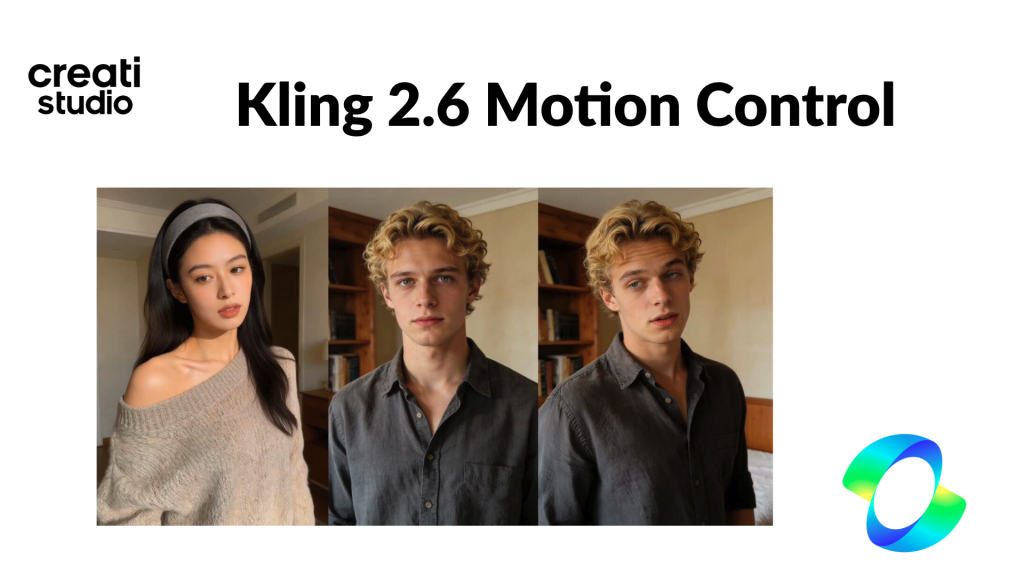
Upload the Reference Video First: Take that video of the girl acting and upload it into the “Motion Reference” slot. This tells the AI how to move.
Write a “Lazy” Prompt: This is where magic happens. Do not describe the hand movements or the touching. Just describe something simple
Simple Prompt:
Make the man in the image dance the same way as in the reference video.
Let It Run: The AI uses Kling motion control to look at your video, copy the movement perfectly, and apply it to the character at your prompt.
It’s basically “Copy and Paste” for acting. You provide the video, write a few words about the look, and the AI handles the hard stuff.
Here is a section that explains how to tweak details using simple prompts. I kept it punchy, fun, and included the keywords naturally.
Changing the Details: One Video, Infinite Vibes
Here is where Kling 2.6 motion control really shows off.
Since the reference video is doing all the heavy lifting for the movement, your text prompt is free to do whatever else you want. You are basically the director shouting, “Okay, keep the acting, but change the costume!”
You don’t need to write a novel to change the scene. By just swapping a few simple words in your prompt, you can completely transform the vibe while keeping that perfect motion.
Here is how easy it is to remix the details:
Want a different outfit?
change “grey shirt” to “a man wearing a red tuxedo.”
Want a new location?
Keep the character description but add “standing on a beach at sunset.”
Want to add some extra life?
“with a small cat running in the background.”
Suddenly, the AI inserts a furry friend into the scene without messing up your character’s acting.
With Kling motion control, you aren’t stuck with what you filmed. You can film yourself in your messy bedroom, write a simple prompt, and look like a supermodel in Paris. It’s the ultimate cheat code for creativity.
Let’s put this to the test and see how well the scene-switching prompts actually work.
Here is the prompt
Make the man in the image dance the same way as in the reference video, keep the character description but add “standing on a beach at sunset.”
Take a look at this clip of Elon Musk dancing on a beach. It is a textbook example of Kling 2.6 motion control flexing its muscles.
The first thing to notice is the lighting. The AI didn’t just paste him onto a background; it actually calculated the “Golden Hour” sunset lighting and reflected it perfectly off his black leather jacket. It feels grounded, not like a cheap sticker.
Even more impressive is consistency. When he spins around and faces the camera again, he hasn’t morphed into a stranger, he is still 100% Elon.
This proves that Kling motion control allows you to drop your character into any environment you can imagine, completely transforming the vibe via a simple prompt without ever breaking the illusion.
Kling 2.6 Motion Control: The Hand Test
Let’s use this prompt to stress-test Kling’s motion control capabilities.
A cinematic, realistic medium shot of a person in their early 30s sitting at a wooden desk near a window. The upper body remains fully visible throughout the shot. The person is wearing a simple light-colored shirt. Soft natural daylight fills the room, creating a calm, tidy, everyday atmosphere. The background is slightly out of focus.
Camera (single continuous shot, no cuts):
The camera remains mostly static, with a very subtle push-in. The framing stays natural and stable at all times.
Action sequence (light hand motion test):
The person glances down at the desk.
Their right hand naturally lifts from the desk.
The thumb and index finger gently pick up a ballpoint pen resting on the surface, with smooth, controlled motion.
The wrist rotates slightly as the person adjusts the pen in their hand.
The index finger slides once along the pen’s body while the thumb subtly changes grip to reposition it.
The person then places the pen back onto the desk in a relaxed manner.
The right hand opens naturally, fingers loosely spread, pauses briefly, and then returns to a resting position on the desk.
Motion and quality requirements:
Natural hand proportions and anatomically correct finger structure.
Clear but subtle independent finger movement, with no finger sticking, fusion, or jitter.
Smooth, continuous motion that feels casual and human, well coordinated with the body.
Realistic skin texture, natural lighting and shadows, subtle motion blur, cinematic realism, 4K resolution, 24fps.
Next, let’s talk about the final boss of AI video generation: Hands.
Specifically, we are looking at close-up, fine motor movements. Take a look at this clip of a hand picking up a pen. This might look simple, but for an AI, this is incredibly difficult.
This shows a massive improvement in Kling 2.6 motion control. Previously, detailed hand interactions were a mess—fingers would often blur together or lose their structure entirely when touching an object. But here, the stability is impressive. The fingers remain distinct and hold their shape reasonably well throughout the interaction.
Is it 100% perfect? Not quite yet.
If you look closely, the movement still feels a tiny bit stiff—perhaps a little “robotic” in the way it snaps to the object. But let’s be fair: compared to the glitchy mess we are used to seeing, Kling motion control handles these complex, delicate interactions surprisingly well.
Putting Kling 2.6 Motion Control to the Audio Sync Test
Let’s be real for a second: in the past, trying to make an AI character talk while moving was a total disaster. They usually looked like a creepy ventriloquist’s dummy—stiff, soulless, and with a mouth that just flapped up and down randomly. It was enough to give you nightmares. But if you watch the sneaker unboxing clip above, you will see that Kling 2.6 motion control has finally fixed this mess.
We use this prompt to generate a video
A high-quality, handheld vlog-style POV shot. A Gen-Z white American female influencer, around 20 years old, sits in a messy but stylish bedroom with neon LED strip lighting in the background. She is wearing a red Supreme box logo hoodie, a chunky silver chain, and a fitted cap. She holds a bright orange Nike shoebox on her lap.
Action: She excitedly lifts the lid of the box to reveal a pair of pristine, crispy white Air Force 1 Low sneakers. She picks one shoe up, brings it close to the camera lens to show the texture and the “Air” logo on the sole, then nods in approval with a hype expression. The lighting is a mix of natural window light and a ring light, creating a professional YouTuber look. 8k resolution, realistic skin texture, dynamic motion.
Script: “Yo, what is good, YouTube fam! It’s ya girl back again with another heat check!
(Sound of box opening)
Stop playing with me! Look at that crispy white leather, man. These are the classics, the essentials—the all-white G-Fikes! You can never, and I mean never, go wrong with a fresh pair of Forces. No creases allowed in this house, bro. Straight fire for the summer rotation. Let’s get it!”
What makes this clip so impressive is multitasking. The girl isn’t just sitting still like a bored news anchor; she is moving her hands, tearing open a box, lifting up a shoe, and talking excitedly all at the same time. Usually, an AI would crash and burn trying to do all that, but here, the body language and the speech flow together perfectly.
Pay attention to her mouth when she speaks. It’s not just opening and closing like a fish. When she says specific words like “white leather,” her lips actually make the right shapes to match the sound. With the power of Kling motion control, we are finally moving past the “silent movie” era. You can now create characters that act, move, and speak without looking like robots in disguise.
How to Write the Perfect Prompt (The “Lazy” Guide)
Writing prompts for Kling Motion Control requires you to completely change your mindset. In the past, you had to be a writer and a director, describing every single movement in detail. But with version 2.6, the secret to success is actually being “lazy.” You need to stop describing the action and focus entirely on the appearance.
Think of it as the “Skin vs. Bones” rule. The reference video you upload provides the “Bones”—the skeleton, the movement, and the pacing. Your text prompt provides the “Skin”—the character, the costume, the setting, and the lighting. Since the video is doing all the heavy lifting for the movement, you should never include verbs like “running,” “dancing,” or “waving” in your text. If you do, the AI gets confused because it sees one thing but reads another.
To write a winning prompt, just follow this simple four-step formula in a single sentence: [Who they are] + [What they are wearing] + [Where they are] + [The Vibe]. For example, instead of writing a long script, you could simply type:
“A futuristic cyborg samurai, wearing shiny black carbon-fiber armor, standing on a rainy rooftop in Neo-Tokyo, 8k cinematic lighting.”
Notice that we didn’t say a single word about what the samurai is doing. The AI will look at your reference video (even if it’s just you holding a broomstick) and apply that movement to your cool cyberpunk character.
Here is the universal kling prompt formula
Don’t Fear the Empty Box: Why Creati Makes It Easy
Let’s be honest: staring at an empty text box can be scary. We all worry that if we don’t write a perfect, 50-word “magic spell,” the AI will give us garbage.
But here is the truth: When you use Creati to access Kling 2.6 motion control, you can stop stressing.
You don’t need a degree in “Prompt Engineering” to get amazing results here. The beauty of Kling motion control is that it is incredibly smart and forgiving. Because the AI relies on your reference video for the movement, your text prompt doesn’t need to be perfect. It just needs to be simple.
Did you write a “lazy” prompt like “cool robot in the rain”?
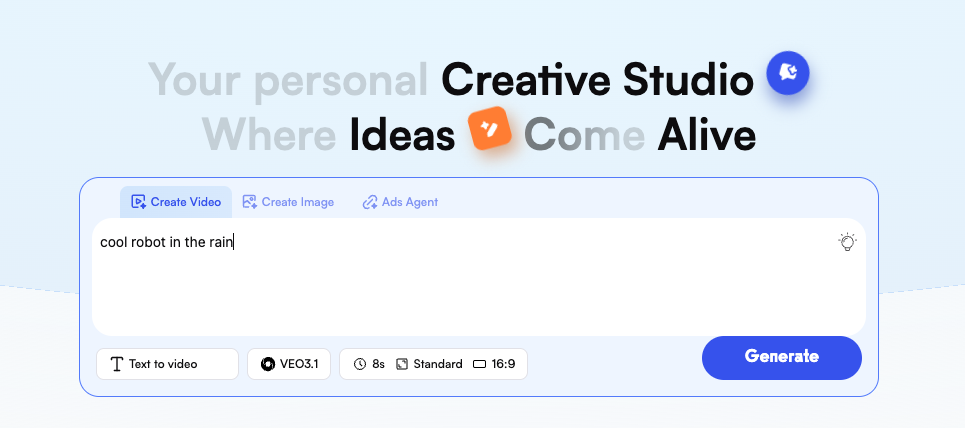
Guess what—on Creati, that is often enough to get a Hollywood-level clip. The platform gives you the tools, and the AI does the heavy lifting. So, don’t be afraid to type simply and hit generate. Your “bad” prompt is probably better than you think.
Let us check the result
Usually, when AI tries to make big machines, they look like cheap plastic toys floating above the ground. They just don’t feel “real.” But this clip proves that Kling 2.6 motion control is different. You can actually feel how heavy this robot is.
It sits deep in the mud and shakes like a real engine is running inside. The rain and steam look amazing, too. This shows that Kling motion control isn’t just for funny dance videos—it can build serious, gritty sci-fi worlds that look like a movie.
Final Thoughts: The End of “Prompt Stress”
If there is one thing to take away from this guide, it’s this: Stop overthinking it.
We have proven that with Kling 2.6 motion control, the days of struggling with complex negative prompts and glitchy physics are behind us. Whether it’s the heavy weight of a mech robot or the delicate motion of fingers holding a pen, this powerful AI video model handles the hard work for you.
You no longer need to be a “Prompt Engineer” to create professional footage. You just need a reference video and a simple description. The “Skin vs. Bones” method we discussed is your cheat code.
So, head over to Creati, upload that silly video of yourself acting in your living room, and watch how easily it transforms into a masterpiece. The barrier to entry is gone—now it’s just time to play.